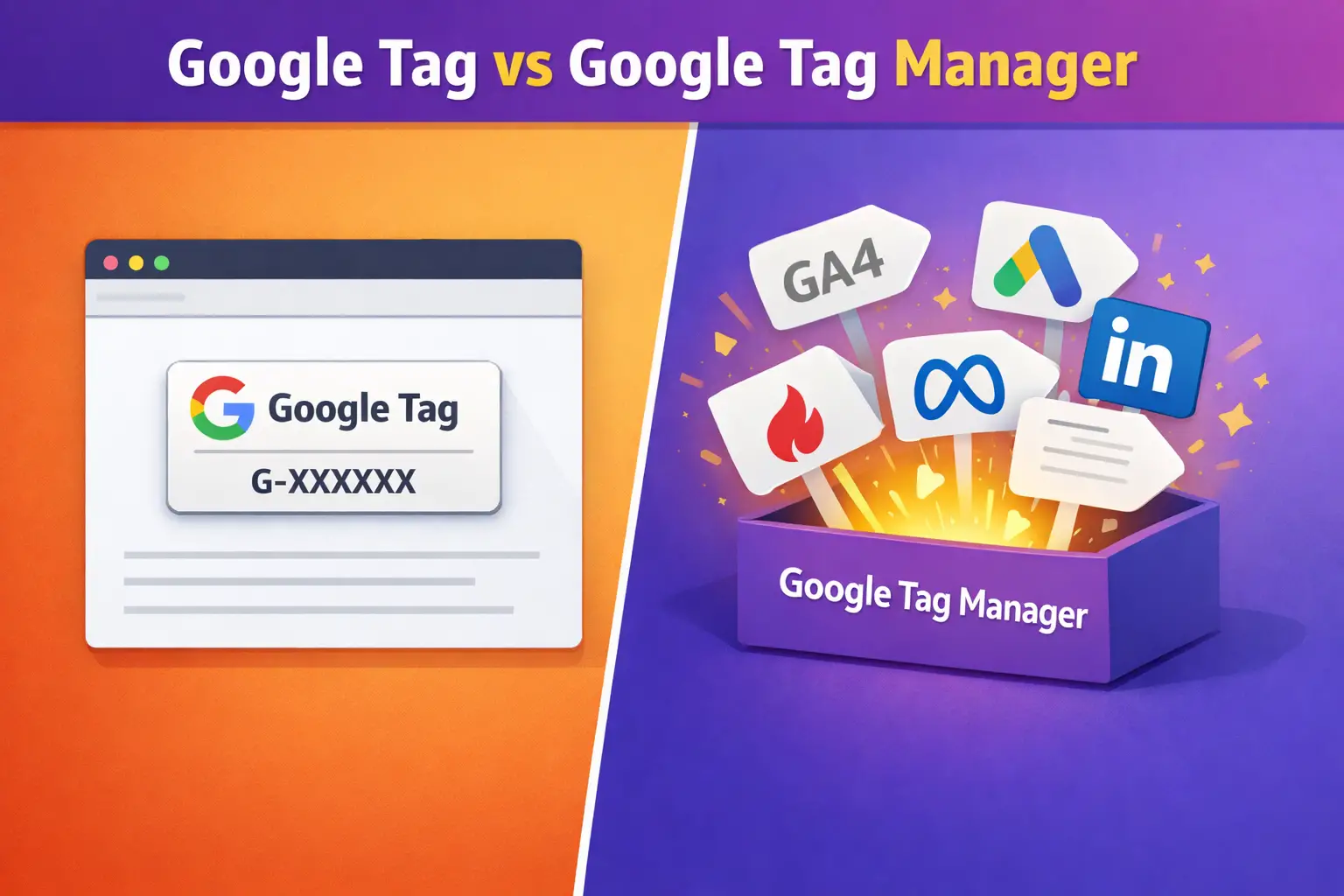
If you’ve ever stared at G-XXXXXX and GTM-XXXXXX wondering if you installed the wrong thing — you are not alone.
Google Tag vs Google Tag Manager: Every week, marketers, small business owners, and even developers ask the same question: “Is Google Tag the same as Google Tag Manager?” The names sound almost identical. Google itself renamed one of them in 2023. And the IDs look like a secret code. No wonder it feels confusing.
This 2026 guide clears it up for good. By the end, you will know exactly what each tool is, which one you need for your business, what all those IDs mean, and the biggest mistake most people make when setting them up.

What You Will Learn in This Guide
- What Google Tag (gtag.js) actually is — and why it was renamed
- What Google Tag Manager (GTM) actually is
- The core difference between the two — explained with a simple analogy
- Decoding every ID format: G-XXX, GT-XXX, GTM-XXX, AW-XXX
- When to use Google Tag vs when to use GTM (decision framework)
- The double-install trap that ruins your analytics data
- FAQs marketers ask most often
The Real Reason This Is So Confusing
Before we get into definitions, let us acknowledge why this topic is a mess in 2026.
1. The 2023 Rebrand
In 2023, Google quietly renamed the “Global Site Tag (gtag.js)” to simply “Google Tag.” Old tutorials still call it gtag.js. New Google support pages call it Google Tag. Same thing, two names.
2. Near-Identical Names
“Google Tag” and “Google Tag Manager.” Add one word and you have a completely different product. Google’s own product naming team owes us an apology.
3. Overlapping Domains
Both tools load scripts from googletagmanager.com. Even the URLs do not help you tell them apart.
4. Multiple ID Formats
You will encounter G-XXXXXXX, GT-XXXXXXX, GTM-XXXXXXX, and AW-XXXXXXX — all in the same ecosystem. We will decode each one below.

What Is Google Tag (gtag.js)?
Google Tag is a small piece of JavaScript code you place on your website. Its job is to collect user data (page views, clicks, purchases) and send that data to Google services — mainly Google Analytics 4 (GA4) and Google Ads.
Think of Google Tag as the “messenger.” It picks up data from your website and delivers it to Google. It does the actual work of sending information.
Key Characteristics of Google Tag
- It is a JavaScript snippet added directly to your website’s code
- A single Google Tag can send data to multiple Google services (GA4 + Google Ads from one install)
- It only supports Google services — no Meta Pixel, no LinkedIn Insight, no Hotjar
- It was formerly called “Global Site Tag” or “gtag.js”
- Setup needs basic code access to your website
What the Google Tag Code Looks Like
<!– Google tag (gtag.js) –> <script async src=”https://www.googletagmanager.com/gtag/js?id=G-XXXXXXX”></script> <script> window.dataLayer = window.dataLayer || []; function gtag(){dataLayer.push(arguments);} gtag(‘js’, new Date()); gtag(‘config’, ‘G-XXXXXXX’); </script>

What Is Google Tag Manager (GTM)?
Google Tag Manager is a free tool from Google that lets you install, manage, and update tracking tags on your website — all without editing your site’s code every time.
Think of GTM as the “control center.” You install GTM once, and from then on you manage all your tags (Google AND third-party) from a user-friendly dashboard.
Key Characteristics of GTM
- Install GTM container code once, then never touch your website’s code again
- Manage Google tags AND third-party tags (Meta Pixel, LinkedIn, TikTok, Hotjar, Clarity — anything)
- Built-in Preview & Debug mode to test tags before they go live
- Version control — you can roll back if something breaks
- Supports triggers (fire on scroll, click, form submit, purchase, etc.)
- Team collaboration with user permissions
The Wallet Analogy (Remember This One)
Here is the clearest way to understand GTM:
GTM is the wallet. Your tags are the credit cards.
You put the wallet in your pocket (install GTM on your site) once. When you want to add a new card (say, a TikTok pixel), you do not buy new pants. You just open the wallet and slide the new card in. That is exactly how GTM works — add, remove, or swap tags from the dashboard, never from your website code.
Google Tag vs Google Tag Manager: The Core Difference
Here is the simplest way to state it:
Google Tag does the tracking. Google Tag Manager manages the tracking.
In fact, when you use GTM to fire a GA4 tag, GTM is writing and executing Google Tag (gtag) commands for you behind the scenes. GTM is the user interface. gtag.js is the syntax it runs.
Side-by-Side Comparison Table
| Feature | Google Tag (gtag.js) | Google Tag Manager (GTM) |
| What it is | JavaScript snippet | Tag management system with UI |
| Installation | Paste code on every page | Install container once |
| Coding needed | Yes, for customizations | No — visual interface |
| Third-party tags (Meta, LinkedIn, Hotjar) | ❌ Google services only | ✅ Fully supported |
| Preview / Debug mode | ❌ Manual testing | ✅ Built-in |
| Version control | ❌ No | ✅ Yes |
| Update tags without redeploying site | Limited | ✅ Yes |
| ID format | G-XXX, GT-XXX, AW-XXX | GTM-XXX |
| Best for | Simple, Google-only setups | Scalable, multi-tool setups |

The ID Decoder: G-XXX vs GT-XXX vs GTM-XXX vs AW-XXX
This is the section almost no blog covers properly. Bookmark it.
G-XXXXXXX → GA4 Measurement ID
- Issued by: Google Analytics 4 when you create a data stream
- Purpose: Tells GA4 which property should receive your website data
- Where you see it: GA4 Admin → Data Streams
- Example: G-ABC123XYZ0
GT-XXXXXXX → Google Tag ID
- Issued by: Automatically created alongside your GA4 or Google Ads account
- Purpose: Manages the link between multiple Google services using one tag
- Where you see it: In the “Google Tag” section of GA4 or Google Ads admin
- Example: GT-ABC123XYZ
GTM-XXXXXXX → Google Tag Manager Container ID
- Issued by: Google Tag Manager when you create a container
- Purpose: Identifies your GTM container on your website
- Where you see it: GTM dashboard, top-right corner
- Example: GTM-XYZ1234
AW-XXXXXXX → Google Ads Conversion ID
- Issued by: Google Ads when you create a conversion action
- Purpose: Used for Google Ads conversion tracking and remarketing
- Where you see it: Google Ads → Tools → Conversions
- Example: AW-123456789

⚠️ The Most Common Mistake:
When configuring a “Google Tag” tag type inside GTM, do NOT paste your GA4 Measurement ID (G-XXX) into the Tag ID field. The correct ID to use is GT-XXX. GTM will not show an error at save time, and preview may even appear to work — but data will not reach GA4 properly. This trips up even experienced marketers.
When to Use Google Tag vs Google Tag Manager
Use Google Tag (Alone) If…
- Your website is small and tracking needs are basic
- You only use Google products — GA4 and maybe Google Ads, nothing else
- You do not plan to add Meta Pixel, LinkedIn Insight, Hotjar, or any other tool
- You want the quickest possible setup with zero learning curve
- You are running a simple blog, portfolio, or brochure site
Use Google Tag Manager If…
- You run ads on multiple platforms (Meta, LinkedIn, TikTok, Google Ads)
- You use or plan to use tools like Hotjar, Microsoft Clarity, or CRM pixels
- You want to track custom events — form submissions, button clicks, scroll depth, video plays
- You want to make changes without bothering a developer each time
- You run an e-commerce store (enhanced e-commerce tracking is far easier in GTM)
- Multiple team members need access to tracking
- You want version control and the ability to roll back changes
Use Both Together (Most Pros Do)
This is what most professionals actually do. Install GTM once on your site, then use GTM to deploy your Google Tag for GA4 and Google Ads, plus all your third-party tags. You get the best of both worlds — Google’s official recommendation for this setup is also GTM.

Which One Should You Use on WordPress, Shopify, Wix, or Webflow?
The “right” tool also depends on the platform your website runs on. Here is a no-nonsense recommendation for each of the popular website builders and CMSs.
WordPress → Use Google Tag Manager (GTM)
Recommendation: Install GTM, deploy Google Tag through it.
WordPress is the most flexible platform, and you will almost always end up adding more tracking tools over time — WooCommerce events, Meta Pixel, Hotjar, Microsoft Clarity, or LinkedIn Insight. Hardcoding each one into your theme’s header.php gets messy fast, and theme updates can wipe them out.
GTM solves this permanently. Install it once using a plugin like “GTM4WP” or “Site Kit by Google,” and manage everything else from the GTM dashboard. For WooCommerce stores specifically, GTM4WP automatically pushes e-commerce events to the data layer, which is a massive time-saver.
Exception: If you run a small personal blog with only GA4 and no ads, Google Tag alone via Site Kit is perfectly fine and simpler.
Shopify → Use Google Tag Manager (GTM)
Recommendation: GTM, especially after Shopify’s Customer Events update.
Shopify merchants almost always run ads on multiple platforms — Google, Meta, TikTok, Pinterest. Each demands its own pixel. GTM is the cleanest way to manage all of them in one place.
Shopify now offers a “Customer Events” section in the admin where you can paste your GTM container snippet. This fires tags on all key e-commerce events (view product, add to cart, checkout, purchase) without editing theme code. For purchase tracking on the thank-you page, Shopify Plus users can also add GTM via the “Additional Scripts” section in Checkout settings.
Warning: Shopify’s native Google & YouTube app also installs a Google Tag. If you also set up GA4 via GTM, you will double-count every purchase. Pick one method — we recommend GTM for flexibility.
Wix → Start with Google Tag, Move to GTM When You Grow
Recommendation: Google Tag for beginners, GTM once you add paid ads.
Wix has a dedicated “Marketing Integrations” dashboard where you can plug in your GA4 Measurement ID (G-XXXXXXX) directly. For simple blogs or small service websites, this is enough.
The moment you start running Meta or Google Ads, switch to GTM. Wix supports GTM through its “Custom Code” feature (available on paid plans) — paste the container snippet once, and manage everything else through the GTM dashboard.
Webflow → Use Google Tag Manager (GTM)
Recommendation: GTM, through Webflow’s built-in integration.
Webflow is used mostly by designers and marketers who want full control without a developer. GTM fits this mindset perfectly. Webflow has a native GTM field under Project Settings → Integrations — paste your GTM-XXXXXXX ID once and you are done.
This is the standard professional setup for Webflow sites. It keeps your Webflow code clean and lets you manage all tracking without bugging your developer every time marketing needs a new pixel.
Squarespace → Use Google Tag (Simple Sites) or GTM (Advanced)
Recommendation: Google Tag for basic tracking, GTM if you run ads.
Squarespace has a native GA4 integration in its Analytics settings — just paste your G-XXXXXXX ID. For most Squarespace portfolio or service sites, this is sufficient.
If you run paid campaigns or want event tracking, use the “Code Injection” feature (Business plan and above) to install the GTM container. From there, GTM handles everything else.
Shopify Plus, Magento, BigCommerce → Always GTM
Recommendation: GTM, no exceptions.
Enterprise e-commerce platforms have complex tracking needs — enhanced e-commerce, server-side tagging, consent management, multiple conversion pixels. GTM is the only realistic option. Most agencies will not even consider a non-GTM setup for these platforms.
Quick Platform Recommendation Table
| Platform | Recommended | Why |
| WordPress | GTM | Flexibility + plugin support (GTM4WP) |
| WooCommerce | GTM | Needs e-commerce event tracking |
| Shopify | GTM | Multi-pixel setups are standard |
| Shopify Plus | GTM | Checkout tracking requires it |
| Wix (simple) | Google Tag | Native GA4 integration is enough |
| Wix (with ads) | GTM | Needed for third-party pixels |
| Webflow | GTM | Native GTM integration built-in |
| Squarespace (basic) | Google Tag | Native GA4 field works fine |
| Squarespace (ads) | GTM | Use Code Injection feature |
| Magento / BigCommerce | GTM | Enterprise tracking demands it |
| Custom-built site | GTM | Future-proof from day one |

The 30-second rule: If your platform has a native GA4-only integration and you will never run ads — use Google Tag. If you run ads on even one platform beyond Google, or plan to in the next 12 months — use GTM. When in doubt, default to GTM. It is almost impossible to outgrow.
The Double-Install Trap (Do Not Do This)
Here is a mistake that quietly destroys analytics data for thousands of websites: installing both Google Tag (hardcoded) AND a GA4 tag inside GTM pointing to the same property.
The result? Every page view gets counted twice. Your bounce rate looks artificially low. Your session numbers are inflated. Your conversion rates are halved. And you will not notice for weeks.
The rule: Pick one deployment path per GA4 property. If you use GTM, remove any hardcoded gtag.js from your site. If you use hardcoded Google Tag, do not add another GA4 tag inside GTM for the same property.
How to Check If You Have the Double-Install Problem
- Open your website in Chrome
- Right-click → View Page Source
- Press Ctrl+F and search for your GA4 Measurement ID (G-XXXXXXX)
- If it appears twice — once in a gtag snippet and once referenced through GTM — you have the problem
- Remove the hardcoded gtag snippet and keep only the GTM implementation

Quick Setup: Which Path Should You Take?
Path 1: Google Tag Only (5-Minute Setup)
Best for simple sites using just GA4.
- Create a GA4 property and data stream
- Copy the Google Tag snippet (starts with G-XXXXXXX)
- Paste it inside the <head> tag of every page
- If on WordPress, use a header-footer plugin or your theme’s header settings
- Verify in GA4 Realtime report
Path 2: GTM + Google Tag (Recommended)
Best for anyone who wants to grow their tracking.
- Create a GTM account and container — you will get a GTM-XXXXXXX ID
- Install the GTM container snippet in your site’s <head> and <body>
- Inside GTM, create a new “Google Tag” tag type
- Paste your GT-XXXXXXX or G-XXXXXXX ID as the Tag ID
- Set the trigger to “All Pages”
- Use Preview mode to test
- Click Submit → Publish
Frequently Asked Questions
Is Google Tag the same as gtag.js?
Yes. Google Tag is simply the rebranded name for Global Site Tag (gtag.js). Google renamed it in 2023. The code and functionality are the same — only the name changed.
Do I need both Google Tag and Google Tag Manager?
Not exactly. If you use GTM, GTM will deploy the Google Tag for you automatically when you configure a GA4 or Google Ads tag. You do not need to install gtag.js separately on your site.
Can I switch from Google Tag to GTM later?
Yes, and it is a common migration. Remove the hardcoded gtag.js snippet, install the GTM container, then recreate your Google Tag inside GTM. Your historical GA4 data stays safe — only future data is affected. Do the switch carefully to avoid a data gap.
Is GTM free?
Yes, completely free. There is also a paid enterprise version called Google Tag Manager 360, bundled with Google Marketing Platform, but 99% of businesses will never need it.
Does GTM slow down my website?
Barely — and usually less than hardcoding multiple tags separately. GTM loads asynchronously and consolidates multiple tracking scripts into one efficient request. For most sites, the performance impact is negligible.
Can I use GTM on WordPress, Shopify, Wix, or Webflow?
Yes. Every major platform supports GTM either through a native integration, a plugin, or by pasting the container snippet into the header. WordPress has several free plugins that make GTM setup a one-click process.
Which ID goes where?
- In GA4 Admin: G-XXXXXXX Measurement ID
- In Google Ads Admin: AW-XXXXXXX Conversion ID
- In GTM “Google Tag” tag type: GT-XXXXXXX Tag ID (or G-XXXXXXX)
- In WordPress/Shopify GTM plugin fields: GTM-XXXXXXX Container ID
Final Verdict: Which One Should You Use?
Here is the brutally honest answer most blogs avoid giving:
For 90% of businesses in 2026, the answer is Google Tag Manager — with your Google Tag deployed through it.
GTM is free, flexible, scalable, and officially recommended by Google itself. Even if you only use GA4 today, installing GTM now means you will never need to touch your website’s code again when you add Meta Pixel, LinkedIn Insight, Hotjar, or the next tool that matters.
The only time to go with Google Tag alone is if you run a tiny Google-only setup and genuinely never plan to expand. And in our experience, businesses that say this almost always expand within 6 months anyway.
Pick your path, set it up cleanly, avoid the double-install trap, and your analytics foundation will be rock solid for years.